How to change your password
Prerequisite Tutorials
| Name | Added On | Difficulty | Time Required | Description |
|---|---|---|---|---|
| Logging in and navigating the application | 06/29/13 | ★★★ | 15 mins | Quick tutorial for those completely unfamiliar with the application. In this tutorial you will learn how to log in the application and navigate the user interface. |
How to change your password
-
Are you ready?
In this tutorial we are going to learn how to change your password for logging in to the application.
We will proceed as follows:- Log in to the application;
- Locate and open the User Settings form;
- Reset the password.
-
Log in to the system using your Username and Password.
Note: To learn how to log in and select perspectives, use the prerequisite tutorial Logging in and navigating the application. -
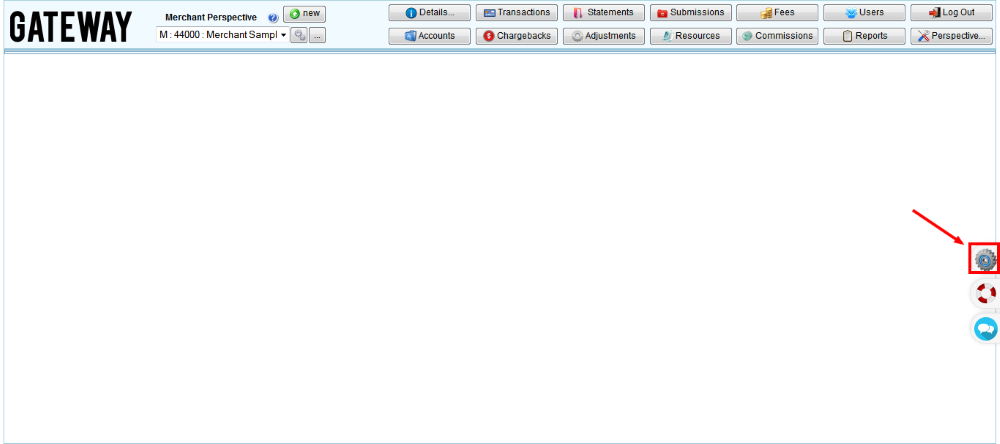
Click User Settings button that can be accessed from any place at the portal.
🔍 screenshot
-
Locate Password textbox and enter the password or generate it using Generate password button.
Note: If you entered your own password, you have to confirm it manually in the Confirm password field. If you chose system generated password, it will be entered automatically. -
Click 💾 Save button
-
Once the password is changed, you will be logged out of the system. To log back in, you will have to use your new password.
-
Congratulations, you are done!
You have learned how to change your password. Now you can do this by yourself.
Tags
Navigation